Enroll in Course
This article will cover the various ways to enroll in a Course. The Compendium360 Platform offers several ways of enrolling in a course that provides a great range of flexibility to workflows.
Generally, or broadly speaking, there are two methods of enrolling in a course:
- User can “Self Enroll”
- Admin can “Enroll a User” into a Course
#Self Enroll
Admin Note: If a course has an “Enrollment Fee” (aka: you are charging for enrollment into this course) and the User will be expected to pay this cost for enrollment (vs you, the Organization, paying enrollment fees for the User), then the User MUST Self Enroll. You cannot “Enroll a User” AND have them pay for the enrollment at the same time.
#Current Users Already on an Account:
A user can SELF ENROLL in a Course if it is listed in the Account Catalog. Admins must make sure that the Course is available in the Catalog in order for users to SELF ENROLL. By default, any user already on your account can self enroll in courses if the courses are accessible via the Catalog. Your course may be free or have a cost associated with it.
#General Public - Someone Not Currently Associated with any Account:
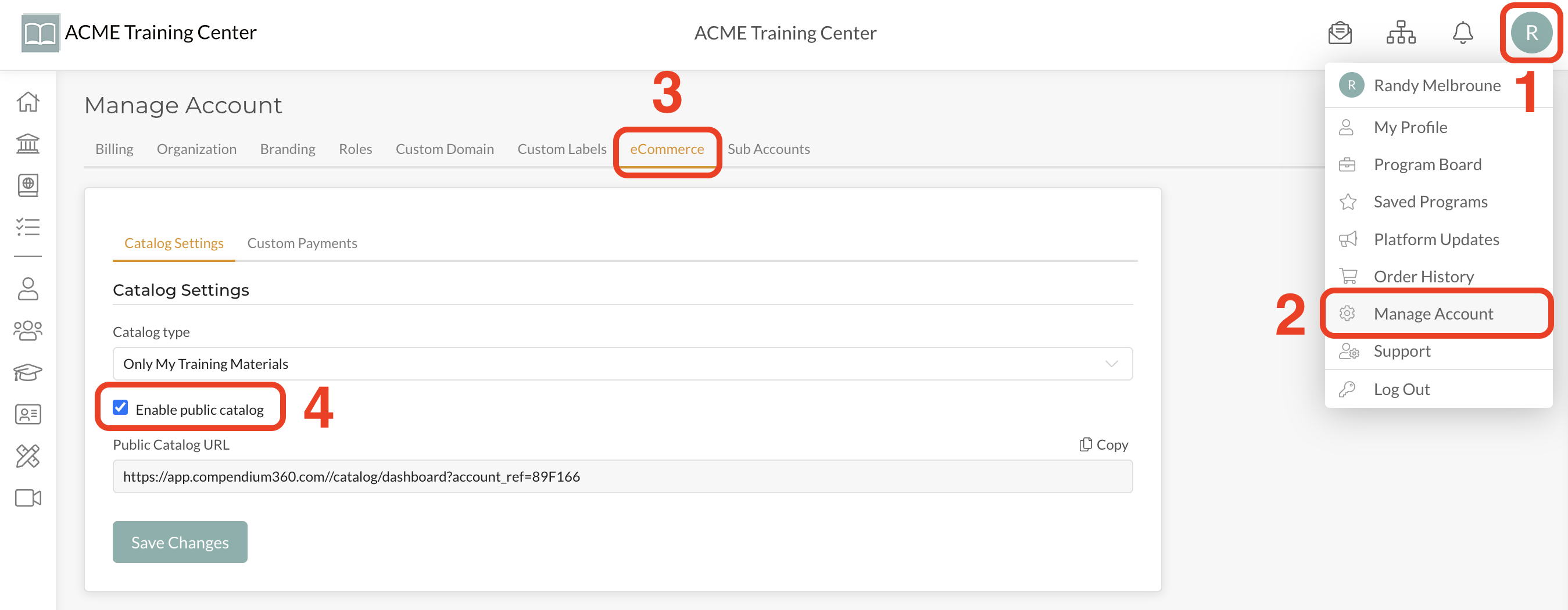
As an Admin, if you wish your course to be available to ANYONE on the internet (ie: You want your course to be publicly available), then you must have your “Public Catalog” Enabled. When the Public Catalog is Enabled, anyone (current users or anyone with access to your Public Catalog) can enroll in the courses listed in the Catalog.
Here is How to Enable Public Catalog:
#Enroll a User
Admin Note: If a course has an “Enrollment Fee” (aka: you are charging for enrollment into this course) and the User will be expected to pay this cost for enrollment (vs you, the Organization, paying enrollment fees for the User), then the User MUST Self Enroll. You cannot “Enroll a User” AND have them pay for the enrollment at the same time.
There are several methods of Enrolling a User into a Course. We’ll take a look at these methods here.
Note: If the course has a fee associated with it and the User being enrolled is to pay the enrollment fee, they will need to Self Enroll. “Enrolling a User” only works for FREE courses and Paid Courses when you (the Organization) is paying for the course. Want to enroll users for FREE into courses that have Enrollment Fees? SEE HOW HERE.
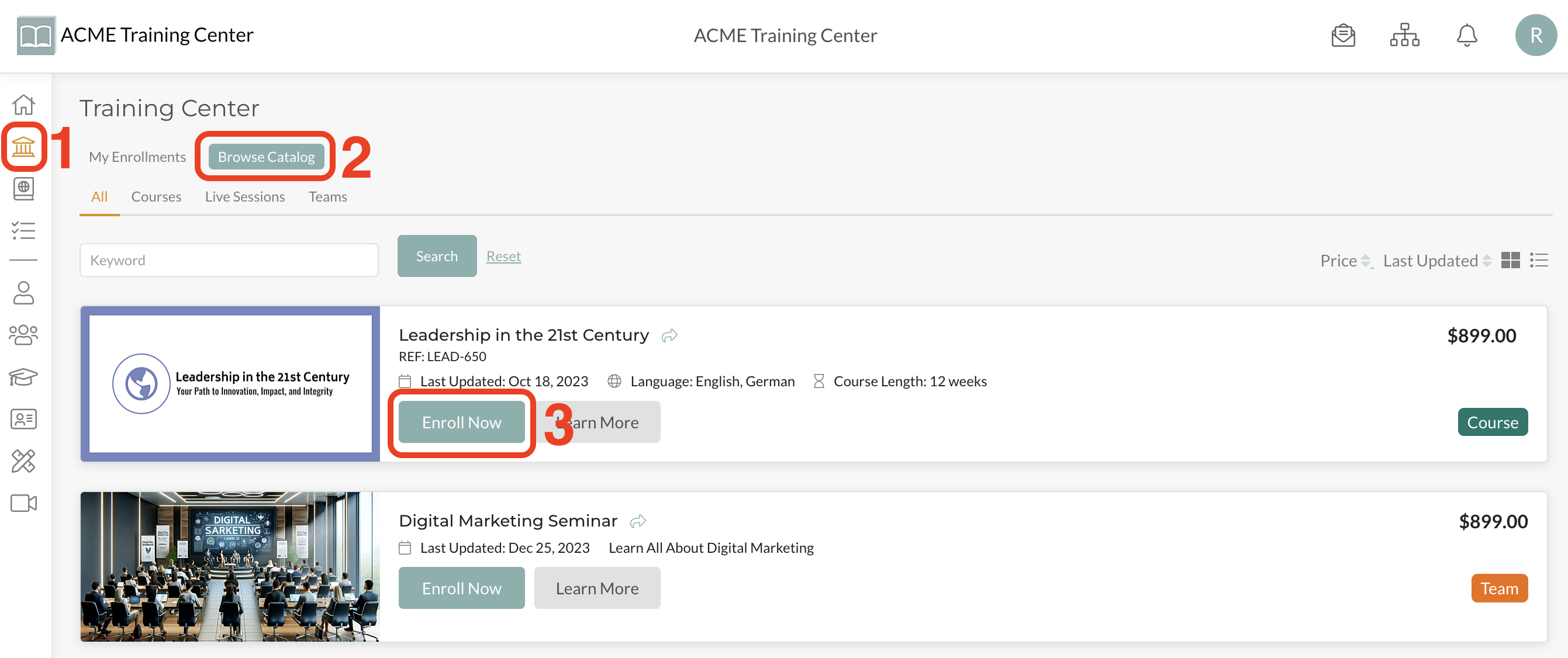
Step 1: Identify Course in the Catalog
Navigate to the Course Catalog, identify the Course you want to Enroll the User in, and click on “Enroll Now”.
Step 2: Select the “Team” the User is in that You’ll be Enrolling in the Course
In the “Course Enrollment” wizard, be sure the “Enroll Others” tab is selected (this is selected by default) and then choose the Team from the drop-down list of Teams that the User is in.
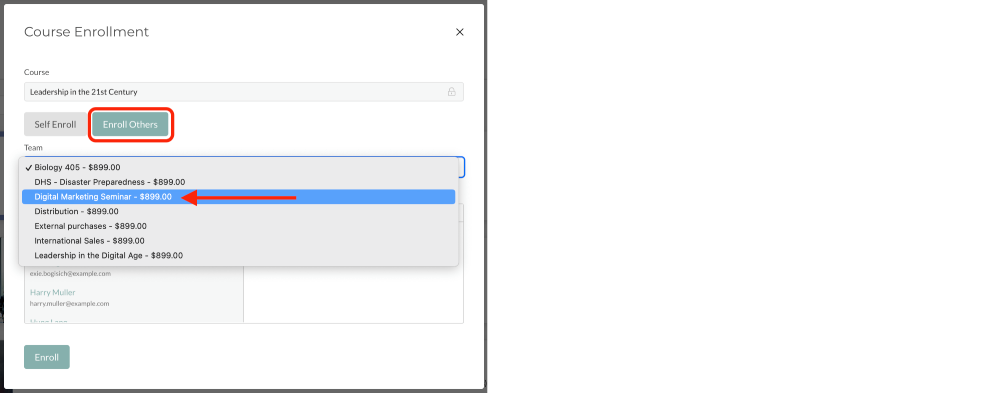
Note: If your course has an Enrollment Fee, this cost is displayed next to the Team Name in the drop-down of Teams. This identifies how much it will cost to enroll a user in that particular course for each team. Cost of enrollments into Paid Courses can be modified team-by-team. Learn More.
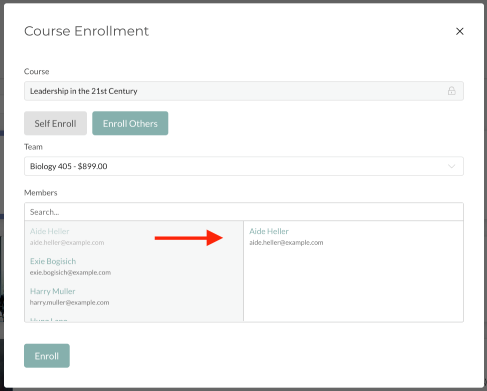
Step 3: Select the User you want to Enroll
Select the User that you want to enroll in the Course and click “Enroll”. Depending on if the course is free or has an enrollment fee, you may be prompted to create a Purchase Order if you do not have enough licenses. If the Course is Free to Enroll, then you’re all set!
Congratulations - You’re all set! If your course was free, the User has been enrolled and has received an Email and Platform Notification that they now have access to the Course.
Note: If there was a Course Fee associated with the Enrollment, your Admin can approve the “Purchase Order”. Once the Purchase Order has been approved, the user will receive an Email and Platform Notification that they have been enrolled in the course.
#Enroll a User from Within their User Profile
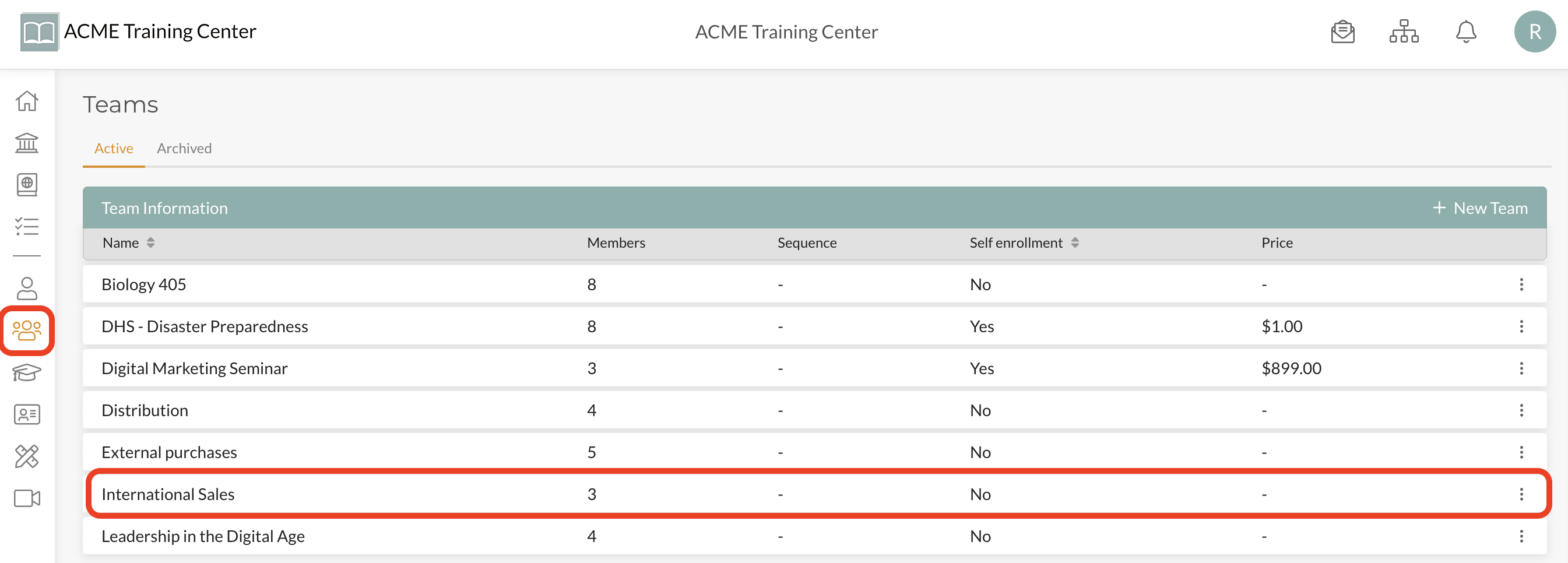
Step 1: Select the Team the User is On
Navigate to the Team page and select the Team the User is on that will be enrolled into a course. In this example, the user is in the “International Sales” team.
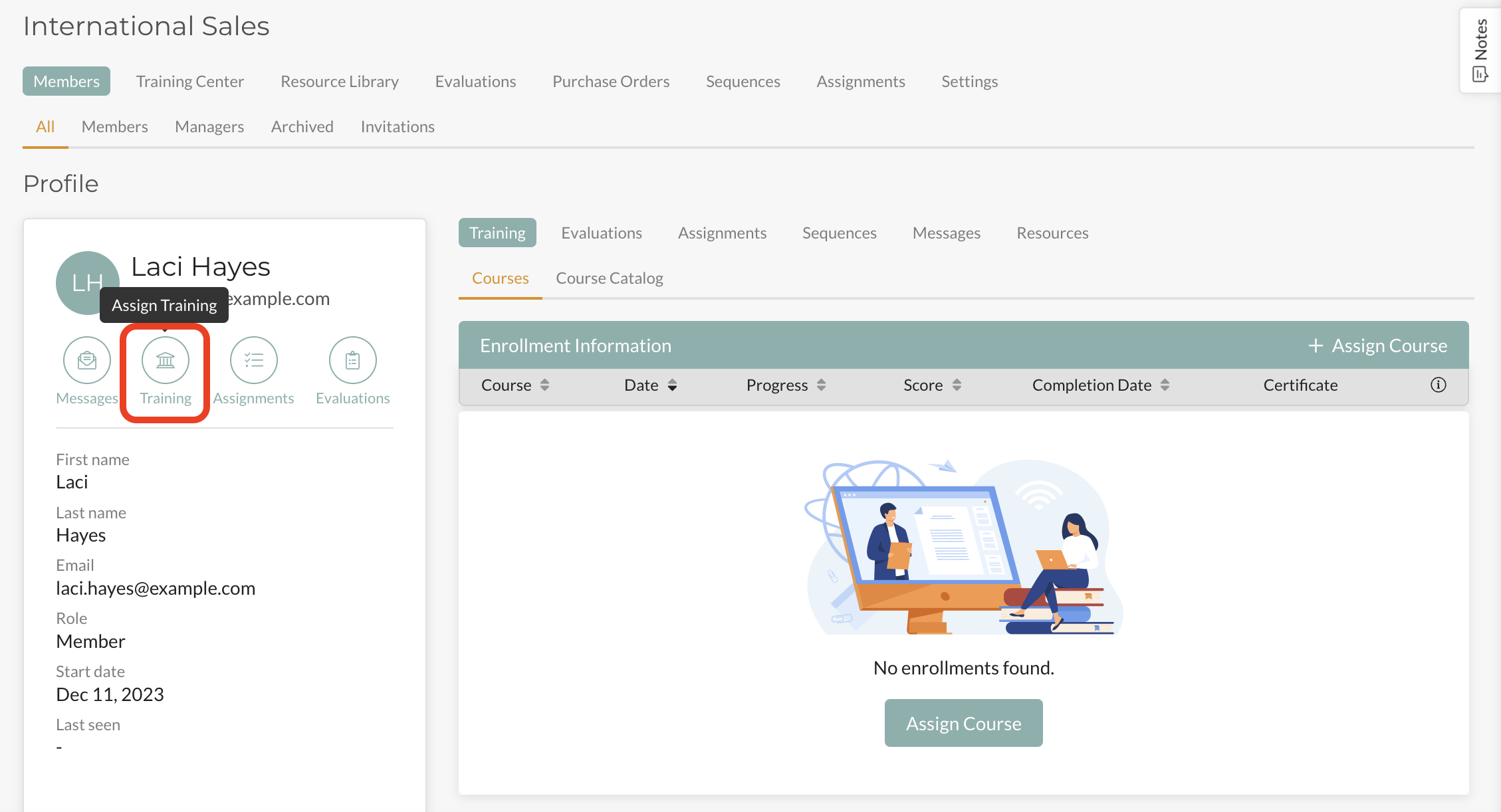
Step 2: Access the user’s Profile and click on the Quick Action button “Training”
From the list of Team Members, click into the Team Member that you are going to assign a course to and then click the “Training” Quick Action button.
Step 3: Select the Course to be Assigned
After click the Quick Action button “Training”, you will be taken to the team’s “Training Center”. Here you can select the Course you want to assign the User. In fact, you can choose multiple courses and even add additional Team Members to the assignment of the course(s). Click “Assign” once done.
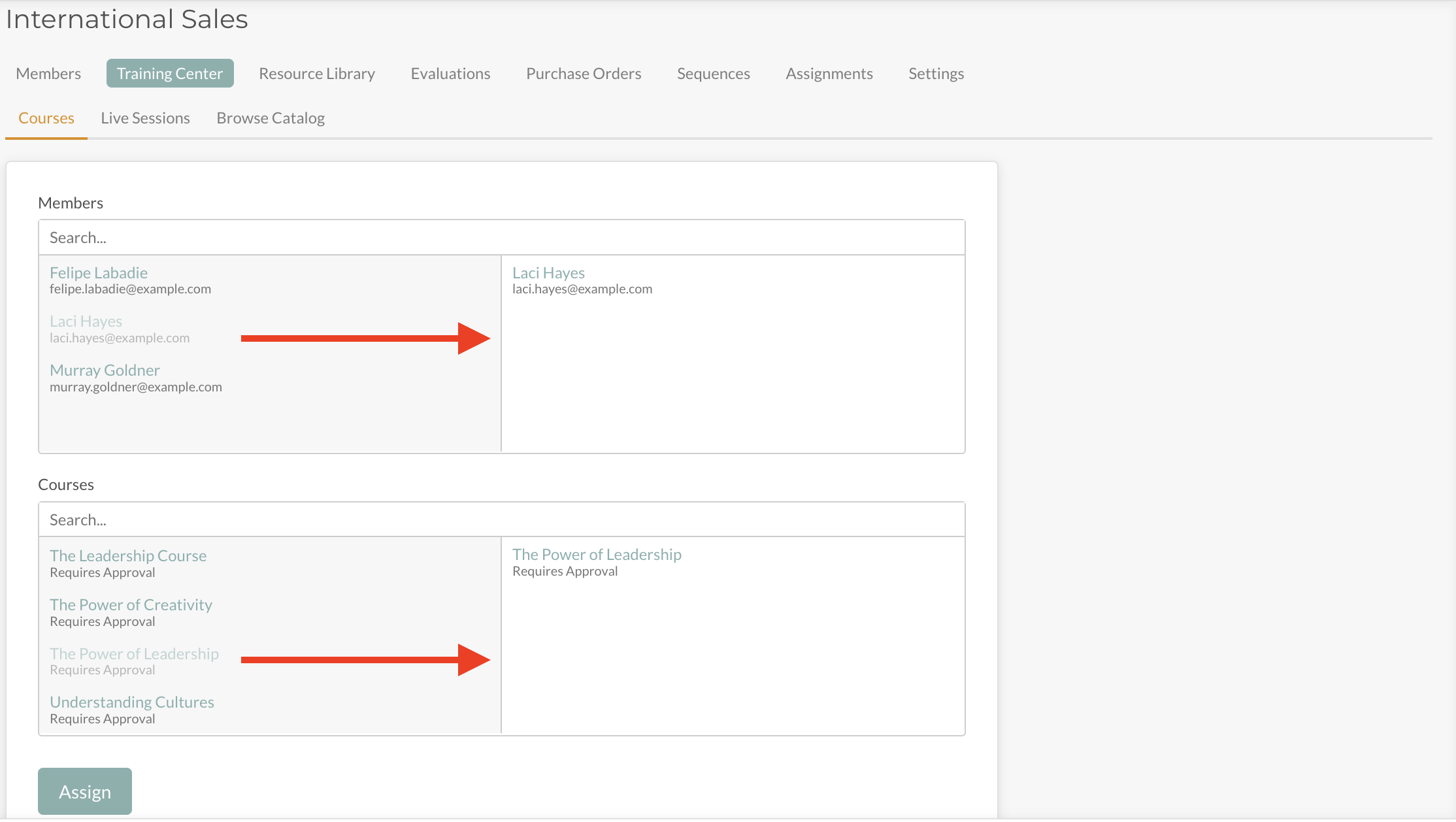
That’s it! You’ve enrolled the user into a Course. Congratulations!
Note: If the course has an Enrollment Fee associated with it and your account does not have sufficient licenses to enroll the Users, you will need to generate a Purchase Order for your Administrator to approve.
#Auto-Enroll a User using a Sequence Automation
Sequences are a powerful tool that enables and facilitates redundant tasks to be triggered with little to no input once set up and activated. Here we’ll take a look at setting up a very simple Sequence Automation that enrolls a User into a Course automatically upon being added to a Team.
This Automated Sequence logic that we’ll build in this example looks like this: When User is added to a Team, auto-enroll them in “Course Name”.