Sharing Courses with Sub Accounts
Courses can be created and maintained all in one place and shared across any or all of your Sub Accounts. When a course is shared with a Sub Account, any future course edits and updates are automatically reflected across all accounts it is shared with. By creating a course in your Parent account and giving your Sub Accounts access to your course, you are able to greatly minimize the amount of work and time it takes to manage your content.
In this article, we’re going to take a look at how to share your course to your Sub Accounts.
Step 1: Identify course to share
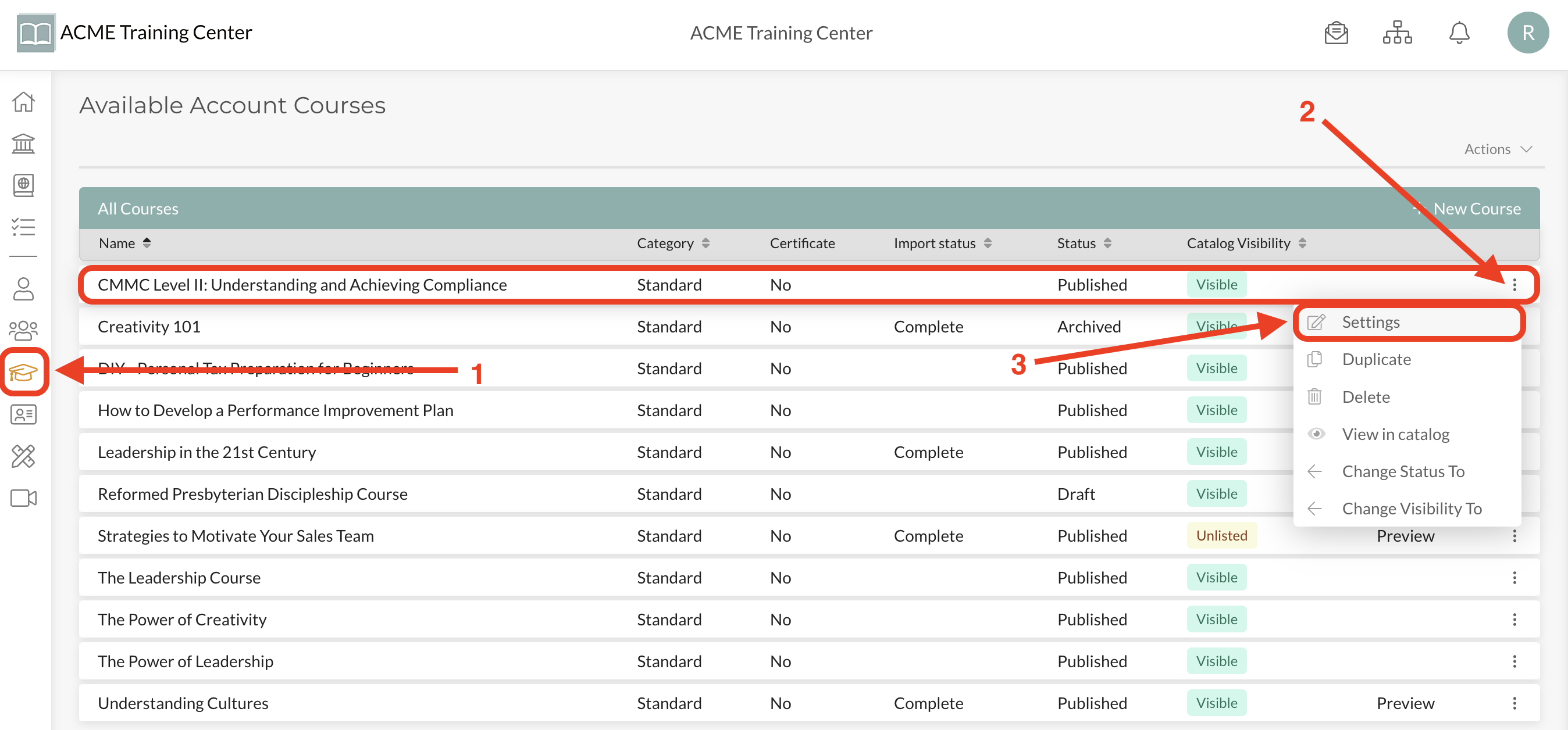
Navigate to the course you want to make available to your Sub Accounts and go into the Course Settings.
Step 2: Select Sub Account(s)
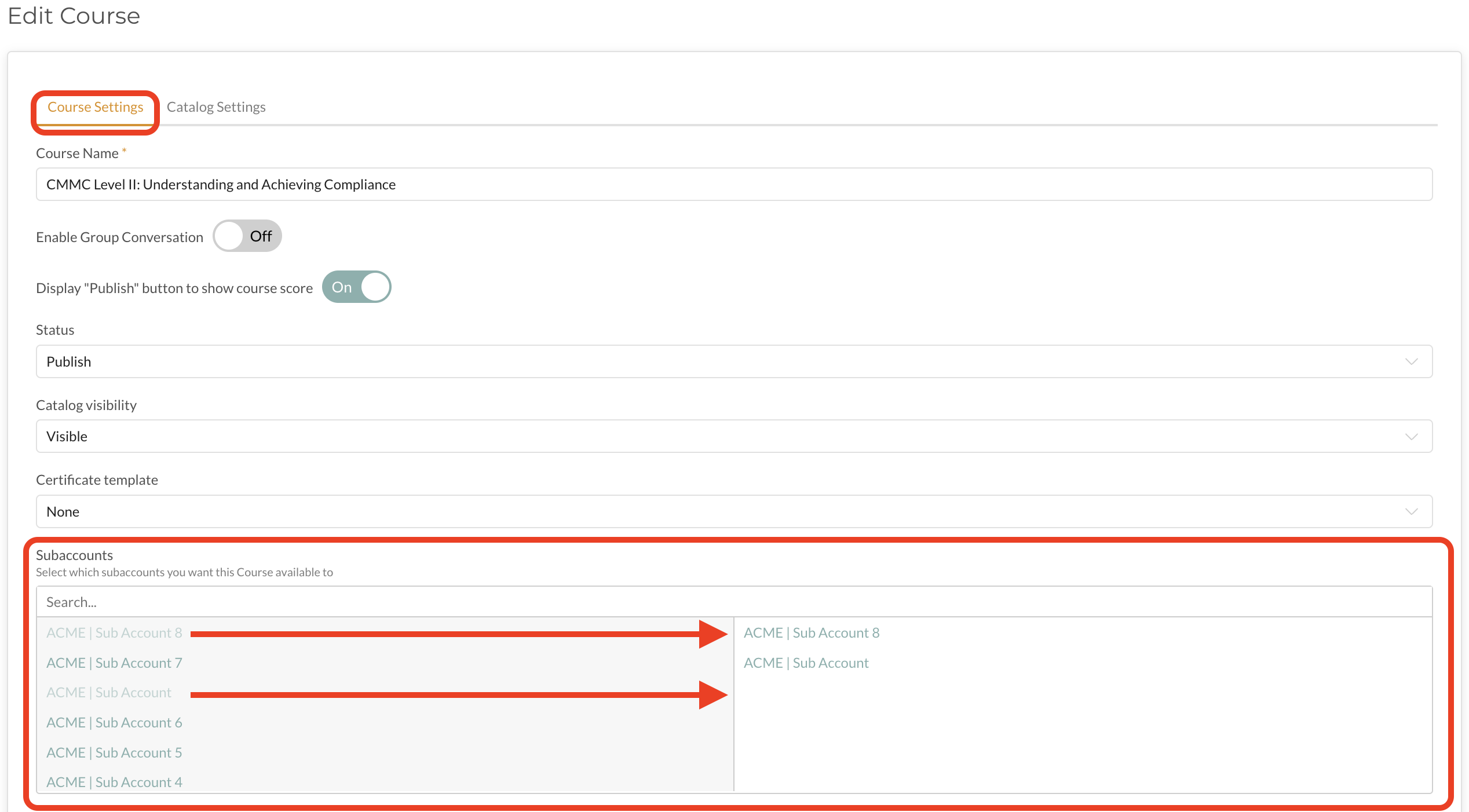
From the Course Settings, scroll down to Sub Accounts and select each Sub Account you want to share this course with. When a Sub Account is selected, the account’s name is moved to the right-side box and becomes grayed out in the left-side box. Once you have identified which Sub Accounts to share the course with, click “Save” below.
Step 3: Make Course Visible in Sub Account(s)
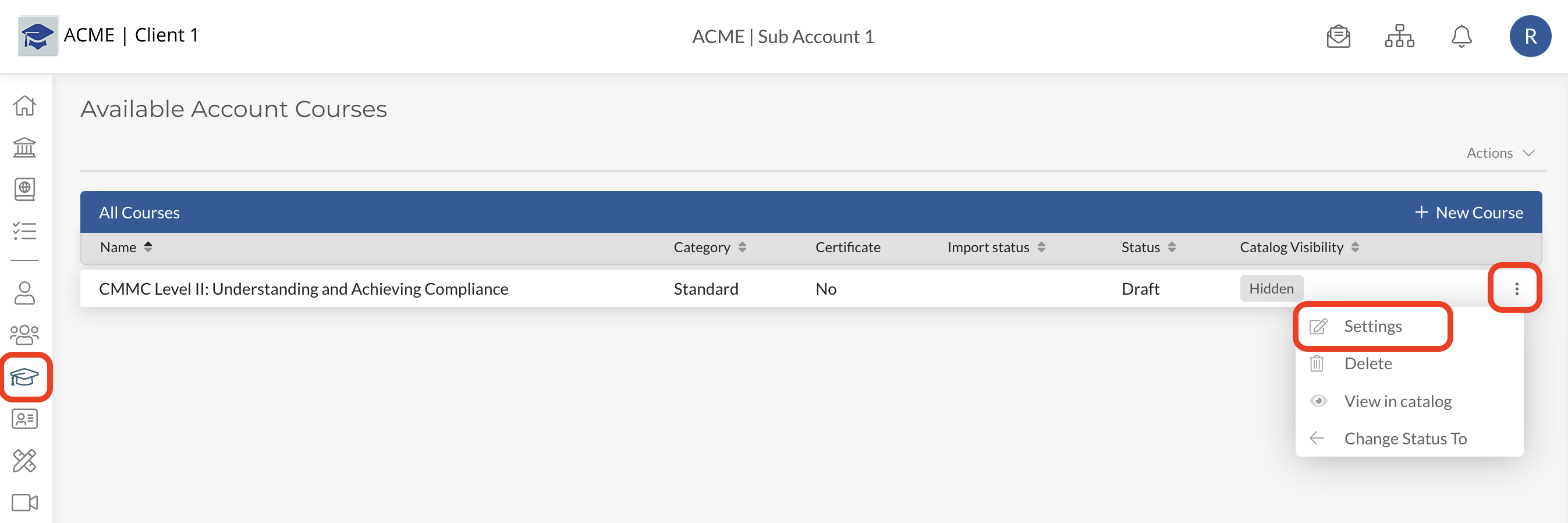
Now that you have made the course available to the Sub Account(s), you’ll need to go to each Sub Account you shared the course with and make the course visible in those accounts.
By default, when a course is shared to a Sub Account, it is set to “Draft” and is not accessible to that account’s Catalog.
Start by going to that Sub Account, navigate to the ‘Courses’ page, and access the “Course Settings”.
From the Course Settings tab, you can update the Status to “Publish” and Visibility to “Visible”.
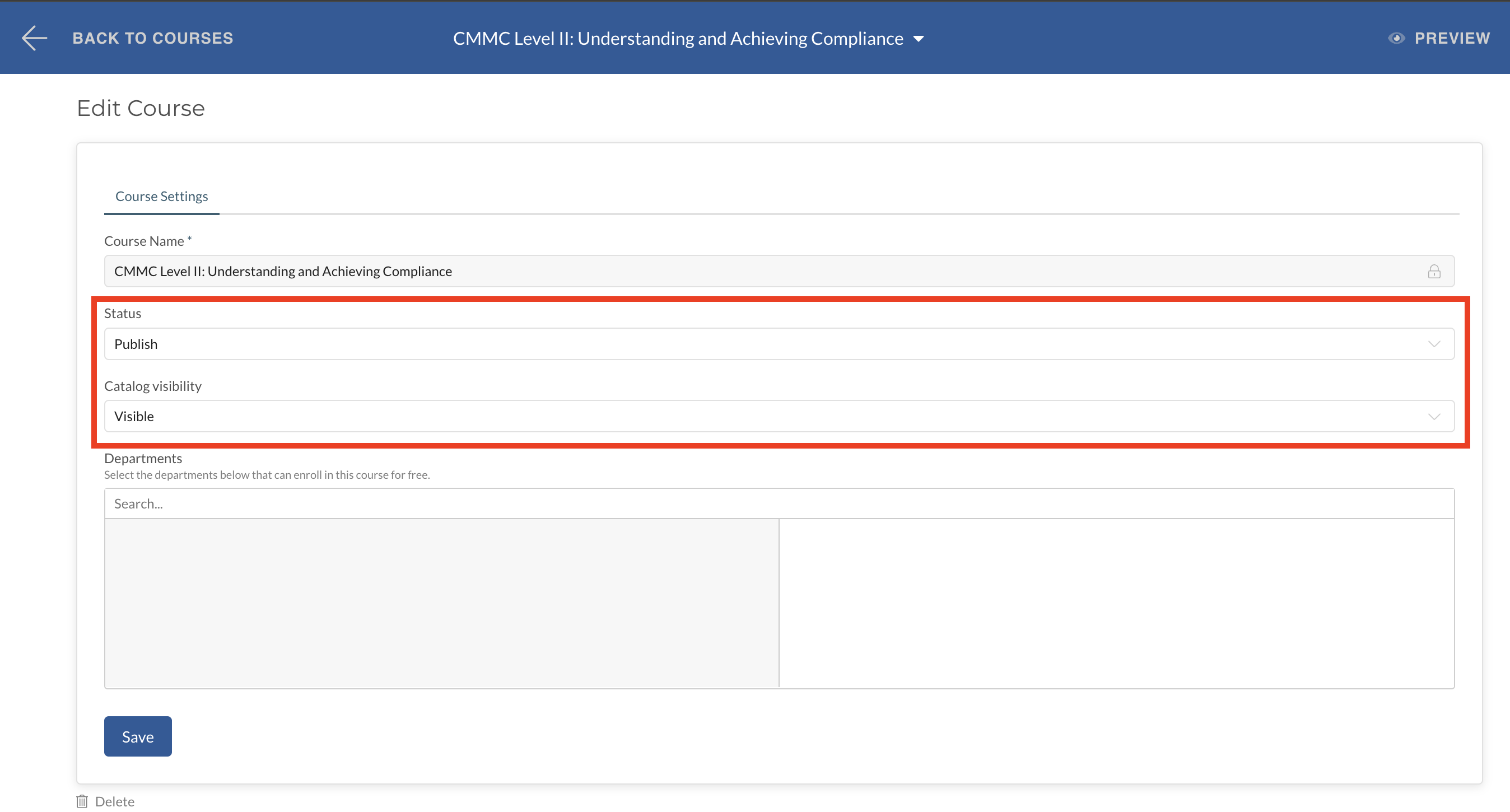
Step 4: (Optional) Make it Available to Selected Teams for Free
If your course has a cost associated with it and you would like to make it available to some (or all) of your teams for free, you can do so by selecting those teams in the Course Settings.
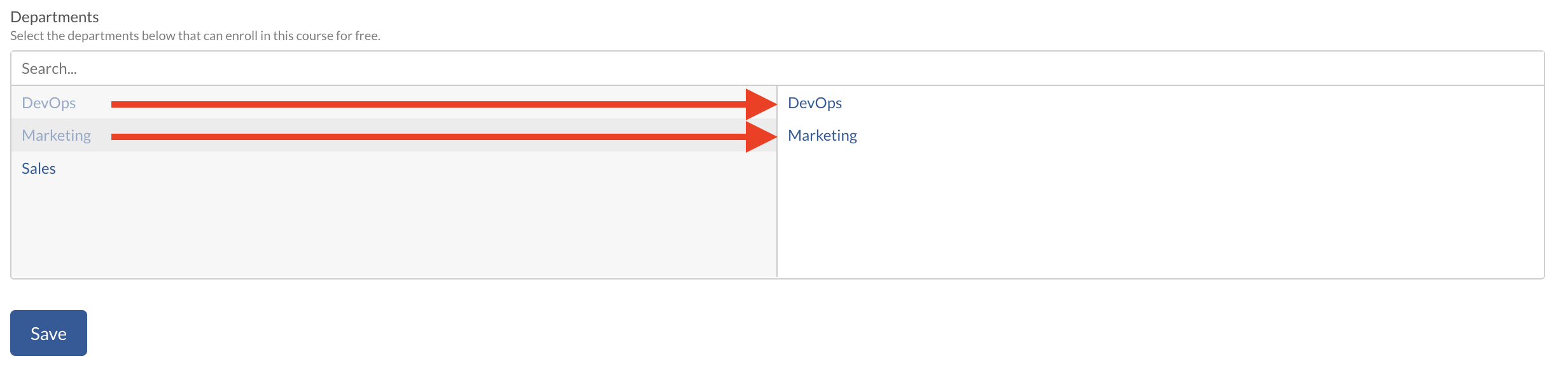
You’re all set! You now have successfully made this course available to your Sub Account and users can now enroll in it.
Note: With shared courses, course content, price, or catalog settings can NOT be edited in Sub Accounts. Those are set at the Parent Account level and are the same across all accounts the course is shared with.
If you would like to have different versions of the same course, check out our Support Article on “How to Duplicate a Course”. Duplicating a course takes less than 30 seconds and allows you to make changes to pricing, course content, and catalog listing information.