Admin Platform Overview
Welcome to Compendium360. We’re glad you’re here! We’ll take a look around the Platform and get you acquainted with the layout and some powerful features available.
Your DASHBOARD will look a little different depending on if you are a basic USER or ADMINISTRATOR. This tutorial is specifically for ADMINISTRATORS. If you are a basic USER, CLICK HERE for your “USERS START HERE” guide.
#Dashboard
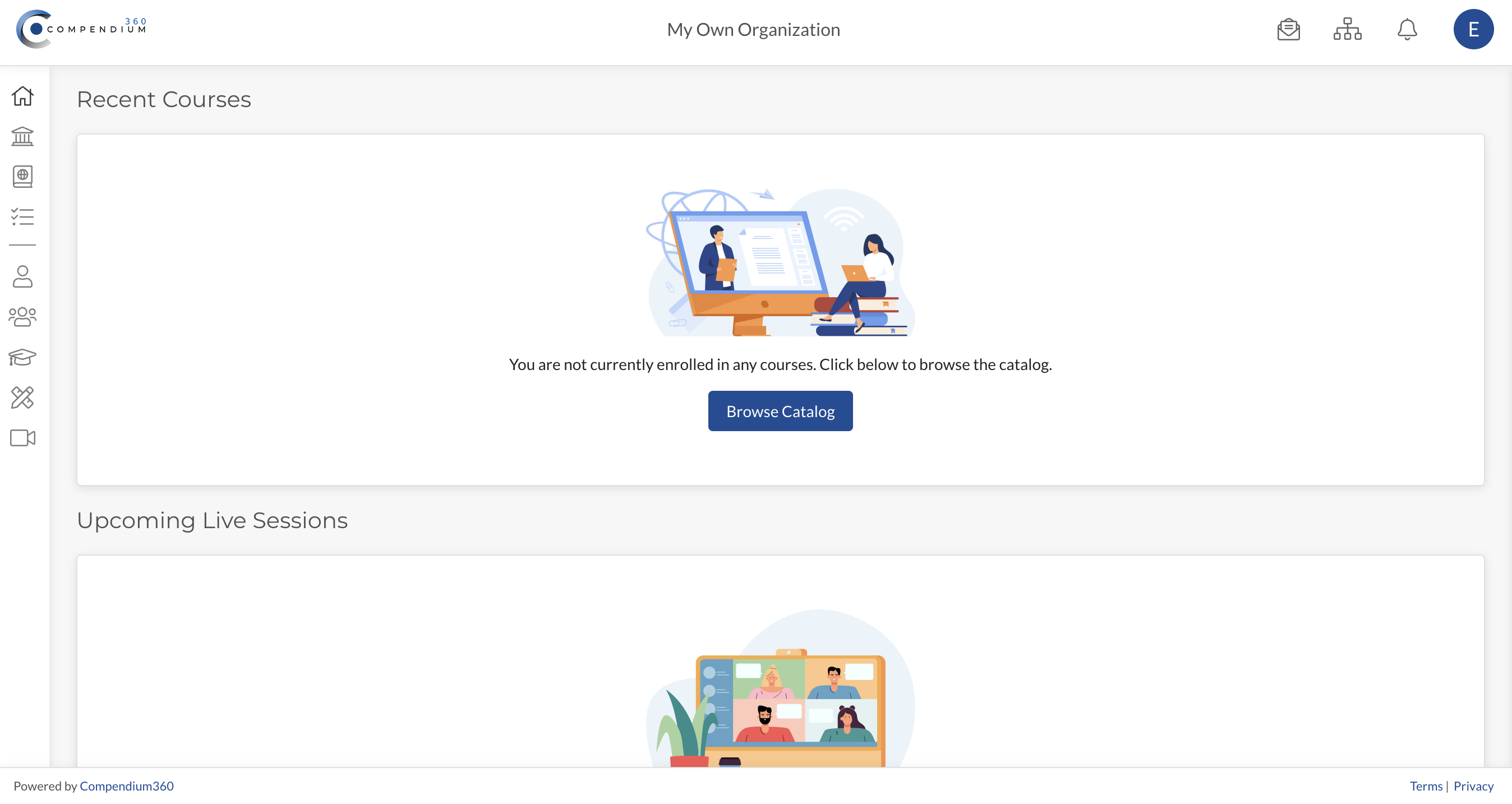
From your DASHBOARD, you will have a quick view of all your Teams, Tasks, Applicants, Enrollments, and more. When you first create your account, you will be invited to “Create a Team”, “Browse Catalog” and more to get started.
">#
#Managing Account
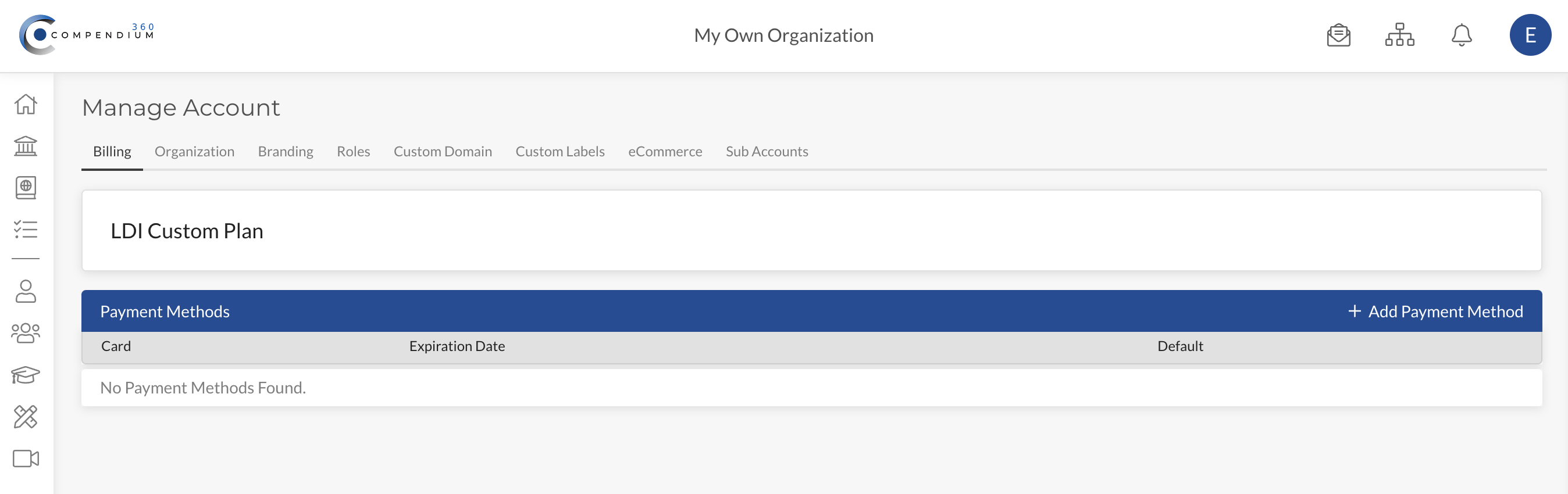
You can manage BILLING, ORGANIZATION, BRANDING, ROLES, CUSTOM DOMAIN, CUSTOM LABELS, and eCOMMERCE from the “Manage Account” option in your Profile Avatar at the Top Right of your account.
">#
#My Training Center
“My Training Center” is where you will find all courses that you are personally enrolled in as well as the Account’s Course Catalog. As an Admin in the Course Catalog, you can review Catalog listings, enroll users in a Course, Live Session, or Team, and self-enroll in any of the Catalog listings.
#My Resource Library
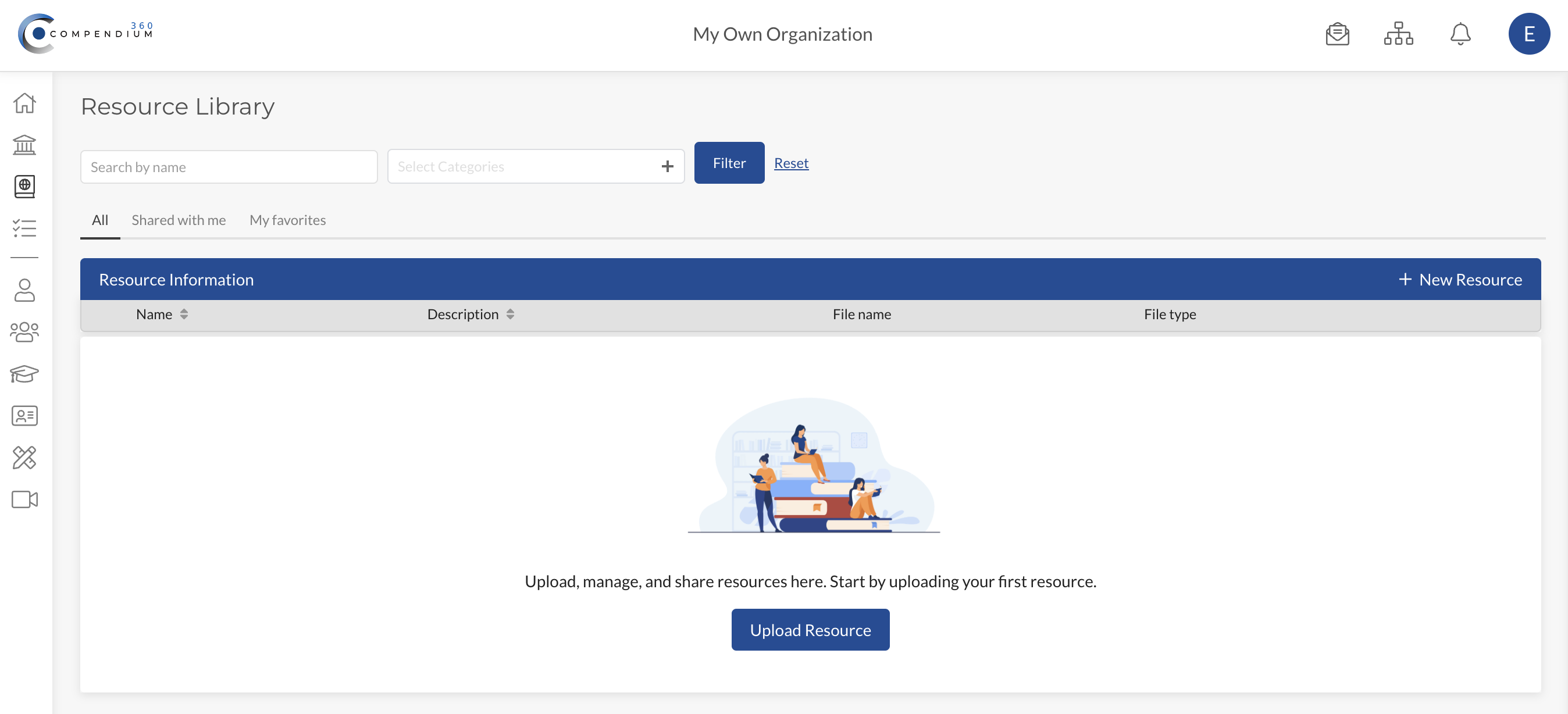
The Resource Library is the central repository for all of the digital files that you want users to be able to access. Learn more about creating and managing Resources HERE.
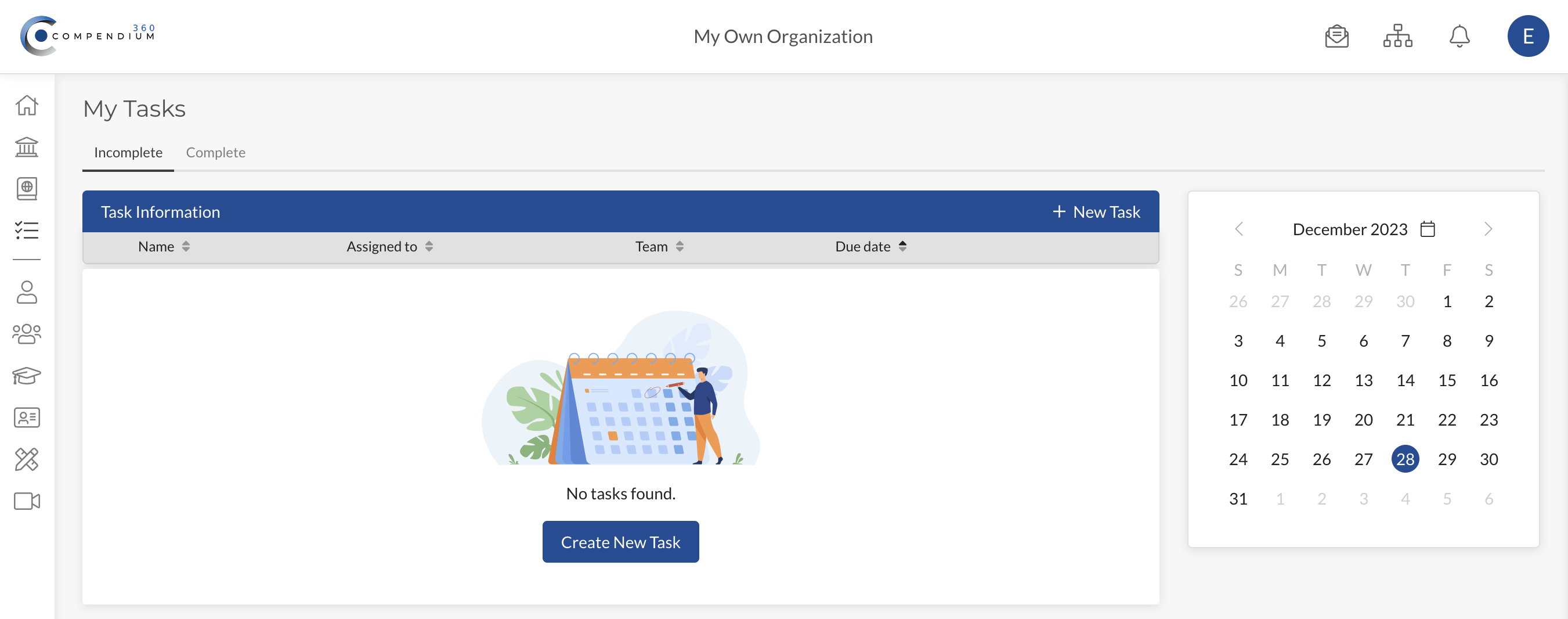
#My Tasks
The “Tasks” page is where you can see and manage due dates, whether assigned to you or others. You can assign a Tasks for someone else to complete and engage in messaging with the assignee to check on progress, share files, and much more.
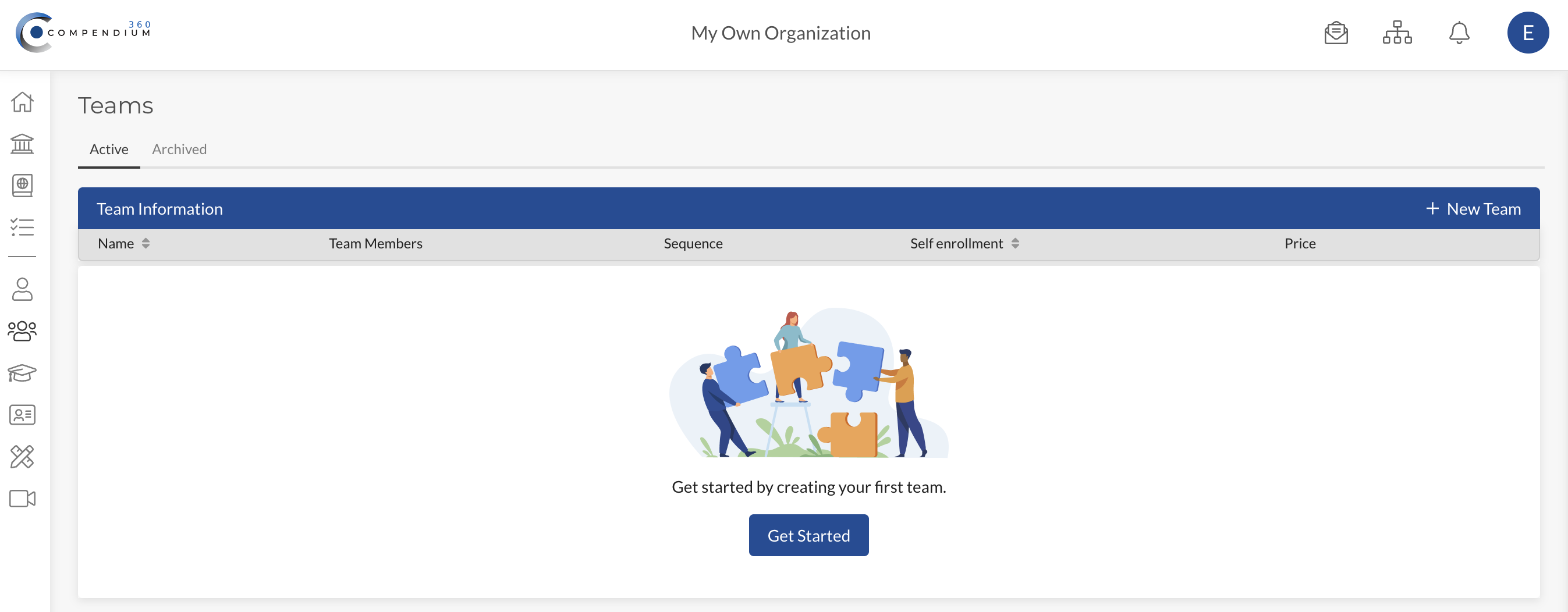
#Teams
Your “TEAMS” page is where you can view, edit, and create any number of Teams on your account.
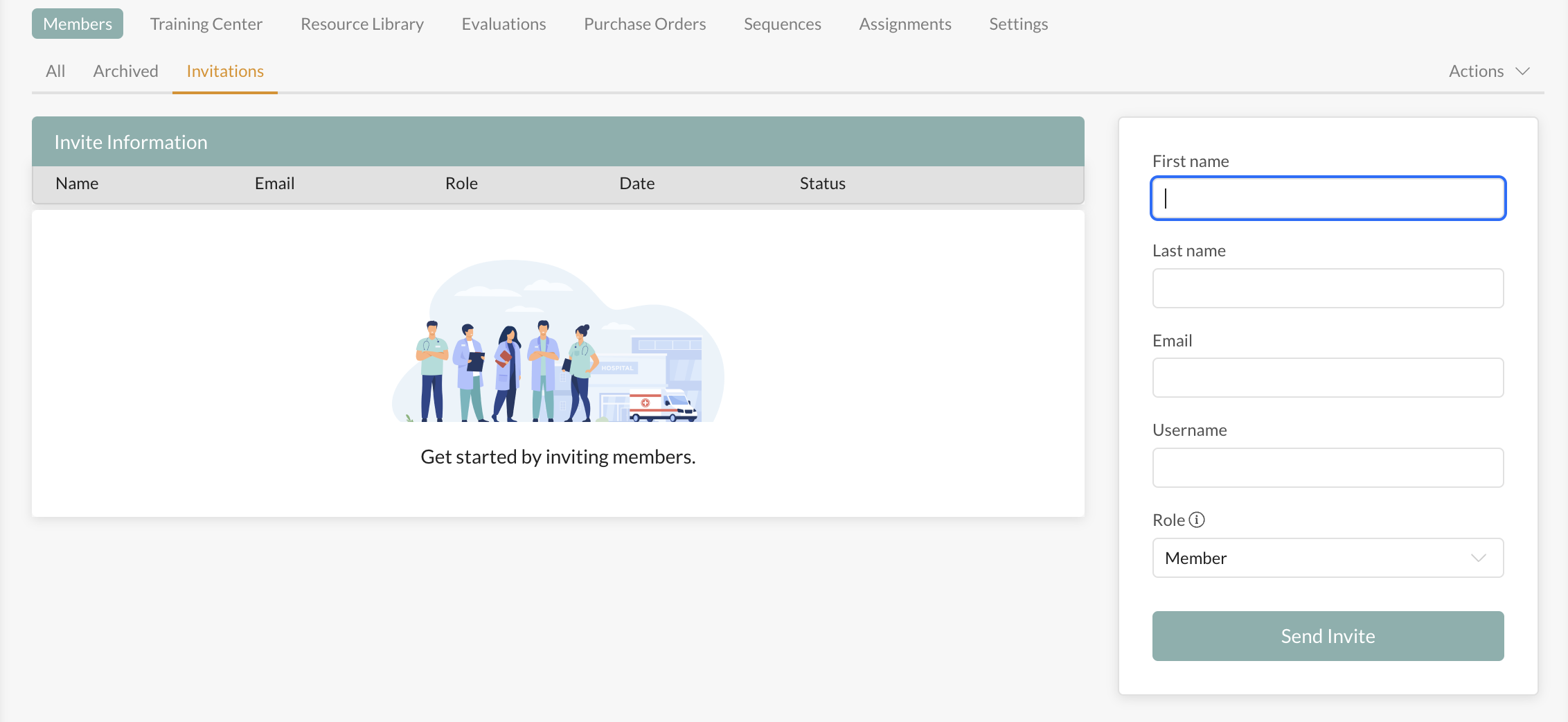
#User Invitations
Once a TEAM is created, you can invite Members to join your Team or Teams.
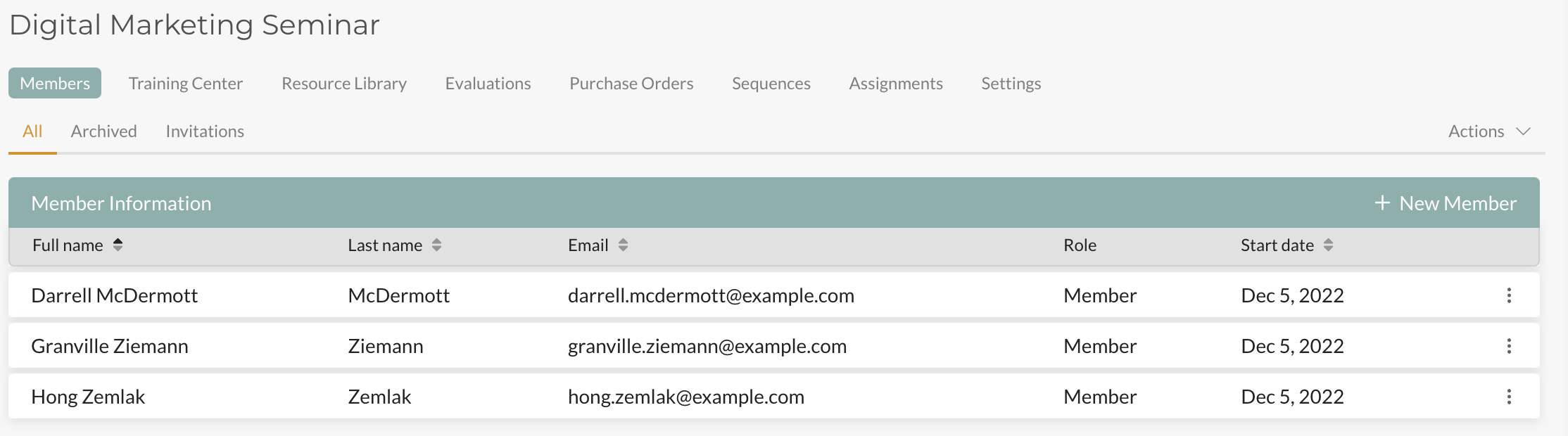
#Team Members
Members of one team do not overlap, interact, or have access to members of another team unless a member is assigned to both teams. From TEAMS, you can view a list of Members on a given Team, their start dates, contact information, and more.
#User Profiles
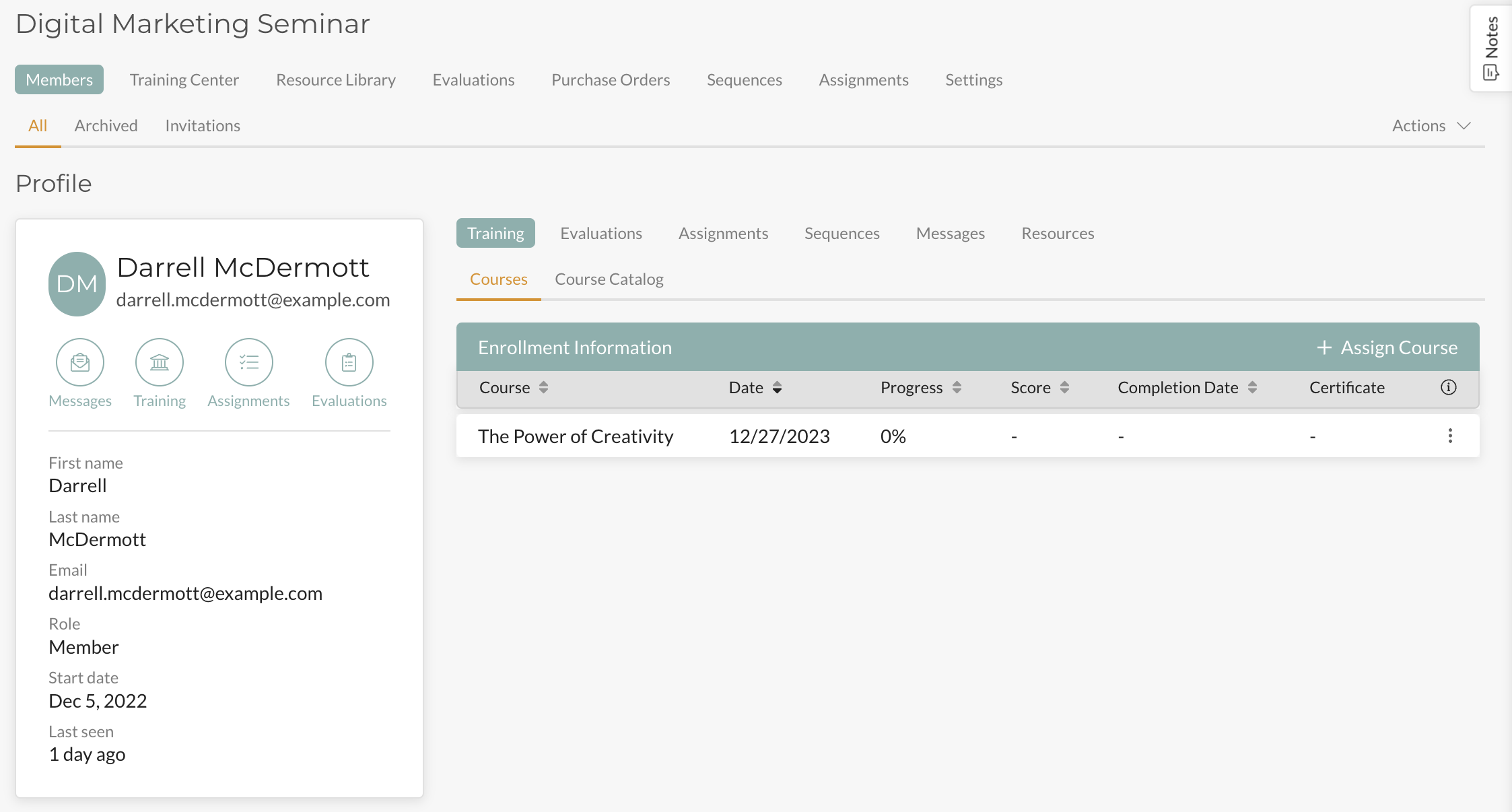
By clicking into a specific Team Member Profile, you can view, assign, and manage their Profile Information, Courses, Evaluations, Tasks, Communications, Sequences, Resources, and more.
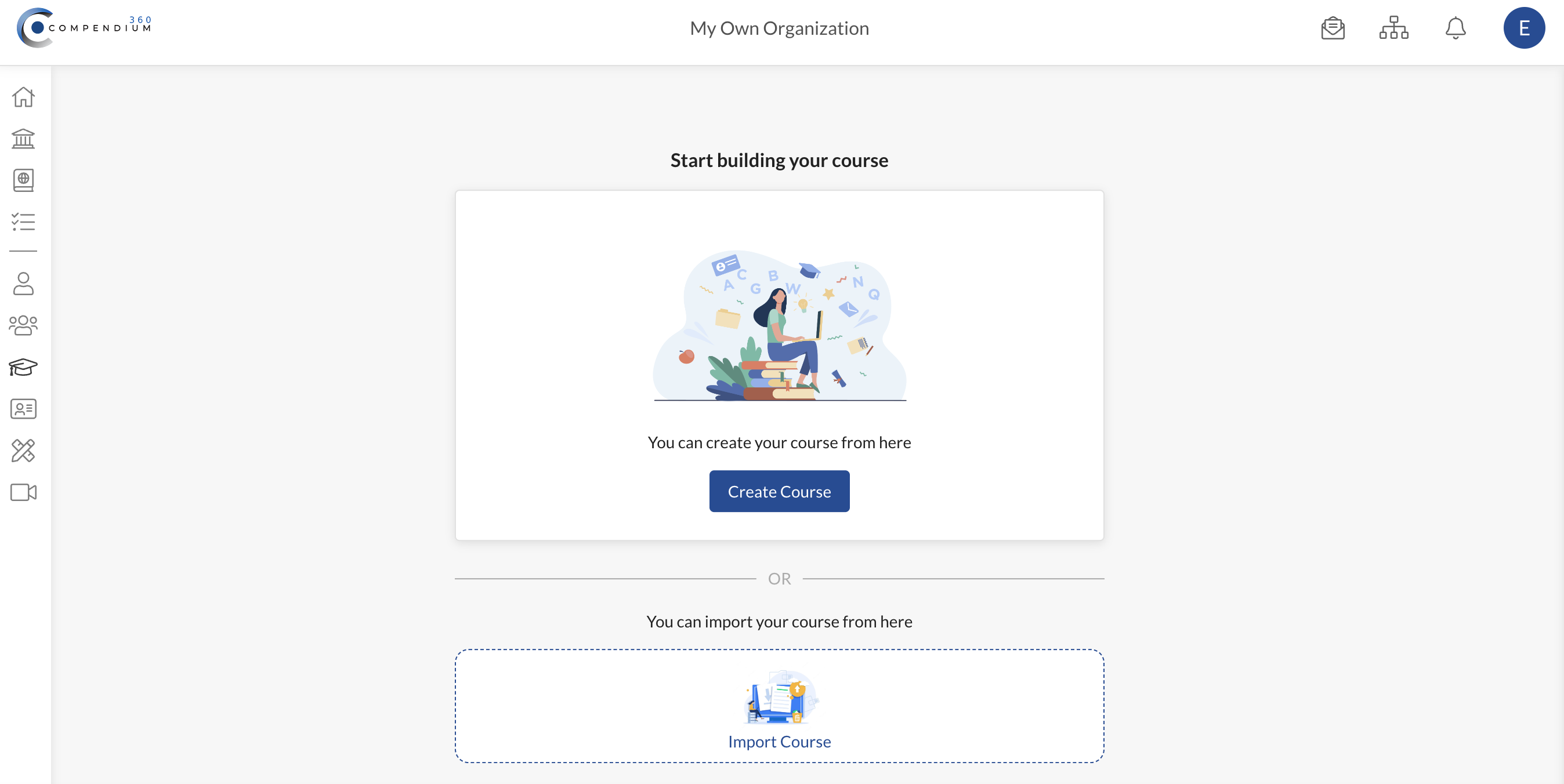
#Courses
This is where you CREATE, EDIT, and MANAGE COURSES for your learners. Native-built courses offer very detailed and nuanced capabilities in how a course is presented and graded.
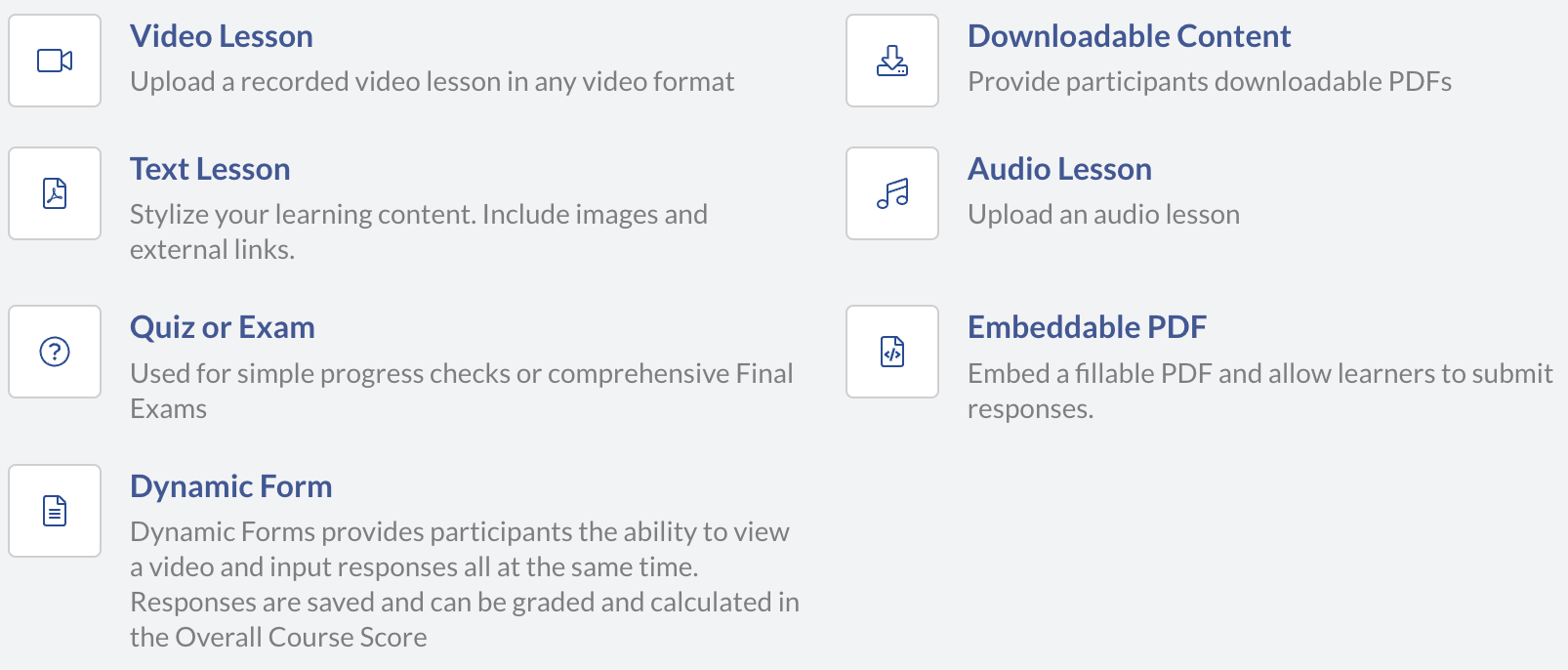
Courses currently support Text Lessons, Audio/Text Lessons, Video/Text Lessons, Dynamic Forms, Downloadable Content, Embeddable PDFs, and Quizzes/Exams.
#Admissions / Recruiting
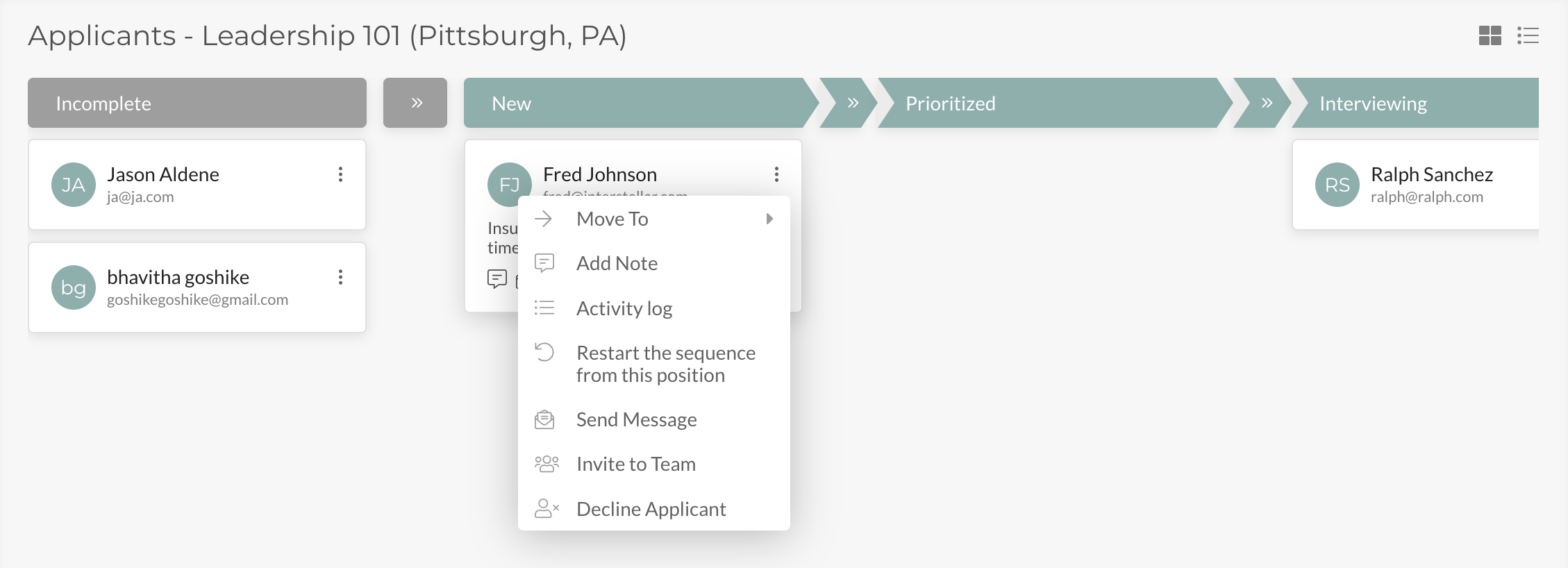
ADMISSIONS (Recruiting) can be used for Academic Admissions, Commercial Job Recruitment, or Program Vetting, depending on your Organization’s needs. Post openings for Programs or Jobs and create custom-built Application Templates for each opening.
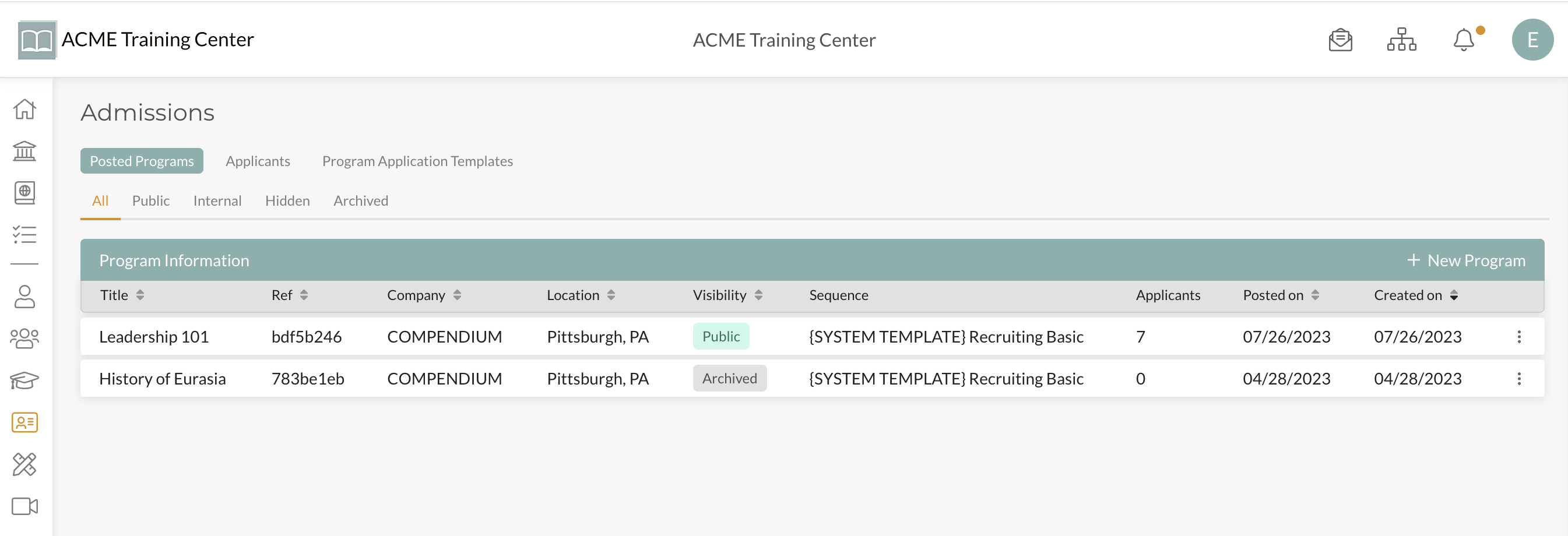
From here, you can view candidate profiles, communicate, vet and manage candidates all in one place.
#Templates
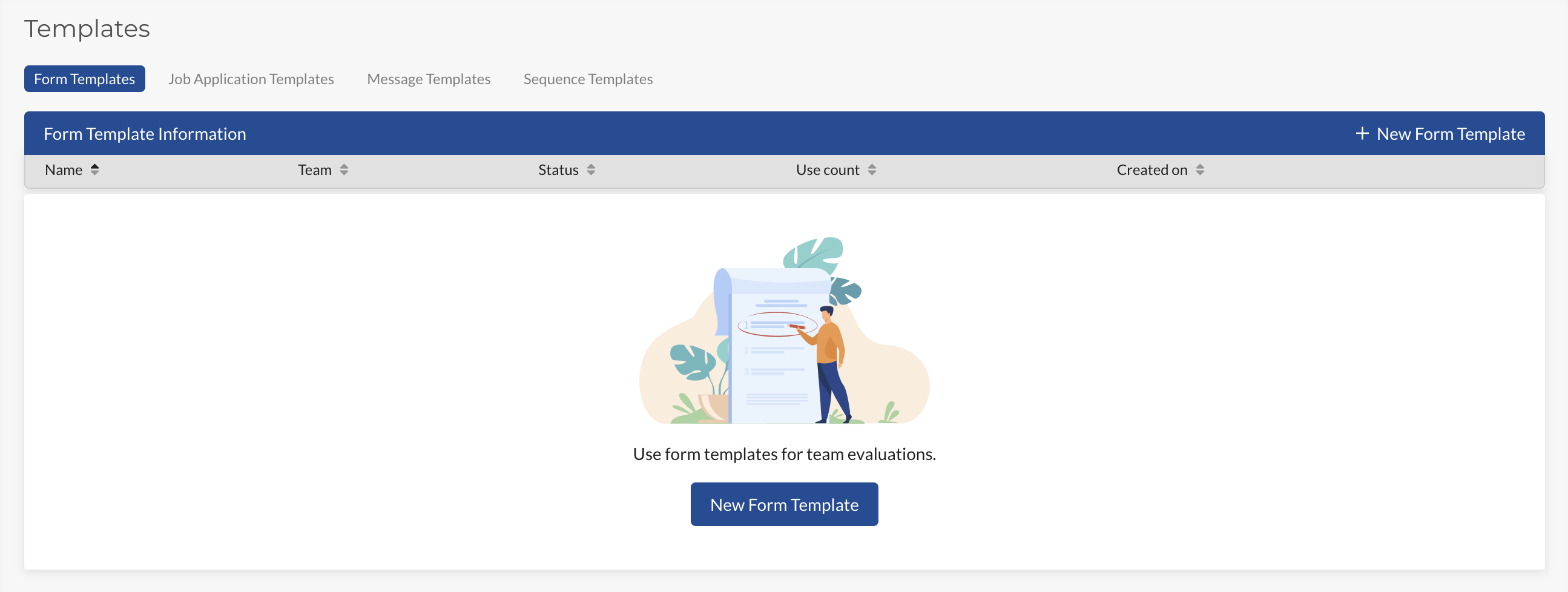
Templates is where the magic happens. Using Templates, you can really simplify life, automate workflows, generate canned messaging, and much more. You can create Templated Forms, Applications, Messages, and Sequences (Work Flows).
#Live Sessions
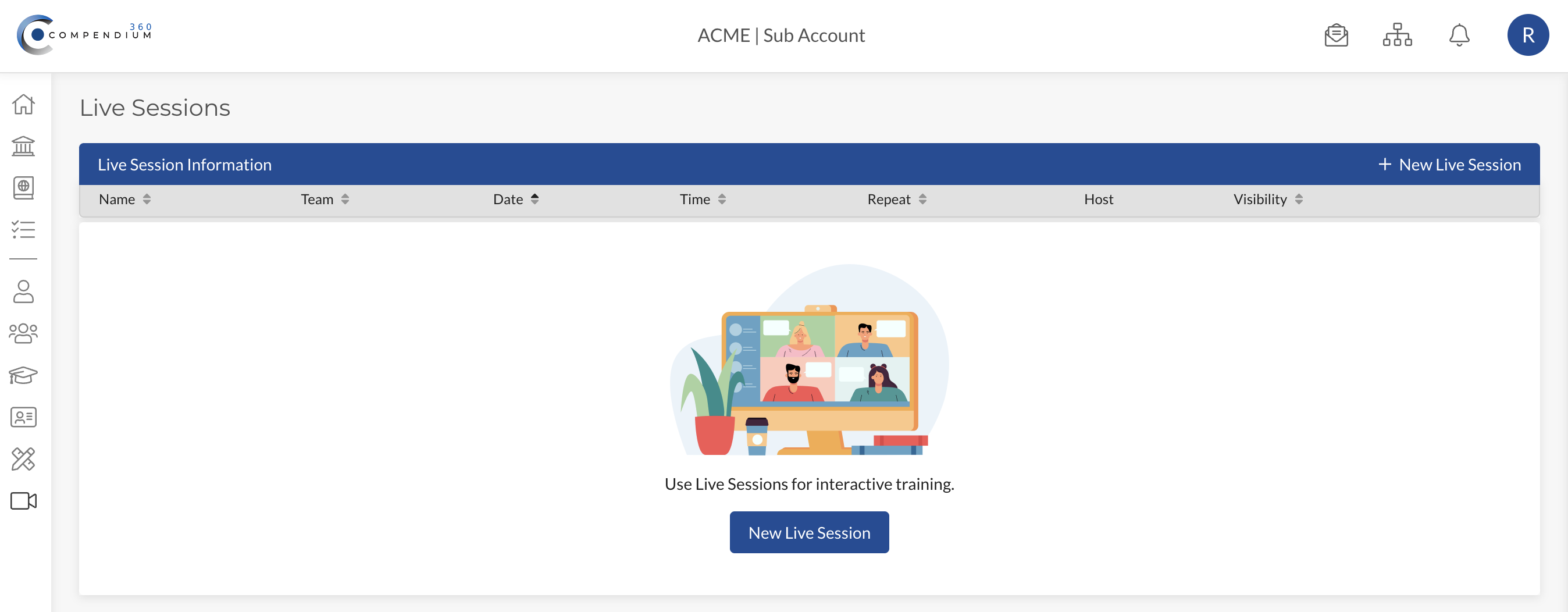
Live Sessions connects your Zoom.us account directly to your Compendium360 Platform allowing you to schedule, manage, and hold Live Sessions, Classes, Meetings, etc directly from your Platform Account without ever having to leave.
#Need Additional Support
As always, if you have any questions or would like more information about anything here, please CONTACT US HERE.